Functional Capabilities
This section explores foundational capabilities and general features of the Modern Browser Experience, and highlights the notable differences between the Browser and Windows application.
Intuitive User Experience
Log In
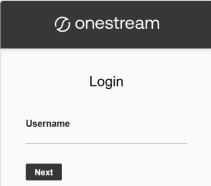
The browser environment can be accessed using a custom URL. For example, https://cloudsitename.onestreamcloud.com. Once the initial login screen has loaded, users can enter a username and click the Next button to authenticate through their Single Sign-On (SSO) provider.
Following successful authentication, the user will either be:
-
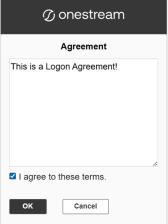
Redirected to the Login Agreement page (if applicable).
-
Redirected to an application (if only one application is accessible).
-
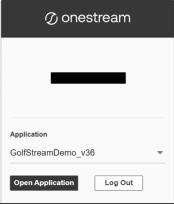
Redirected to the Application Selection page (if more than one application is accessible).
Log Out
Users can log out from the Application Selection page or by selecting Log Out from the User Menu.
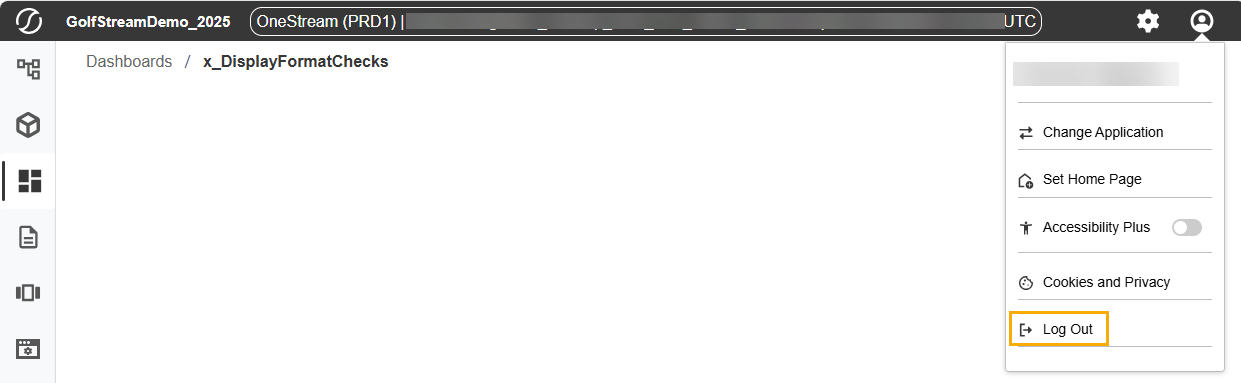
Logging out of the Modern Browser Experience will not log out users from their other open instances of OneStream, such as the Windows application or Excel Add-In, nor will it log out users from their SSO sessions.
Change Applications
Select Change Application from the User Menu to display the Application Selection page and change the current application.
Header
The Modern Browser Experience provides a familiar header area and updated OnePlace panel which can be accessed at any time while using the browser application. Similar to the Windows application, the header has a Home button embedded in the OneStream logo and displays the Application Name. Other header functionality has been moved to two menus in the top right corner of the screen.
-
 Gear Icon – Application Name, Global POV, Version Number, Help Documentation, Task Activity, File Explorer
 -
 User Icon – User’s Name, Change Application, Set/Clear Home Page, Accessibility, Log Out
The OnePlace Panel can be fully collapsed, opened to display Navigation controls, or expanded as an overlay when working with any of the menu areas.
NOTE: The OnePlace panel may be fully hidden for certain users using security settings.
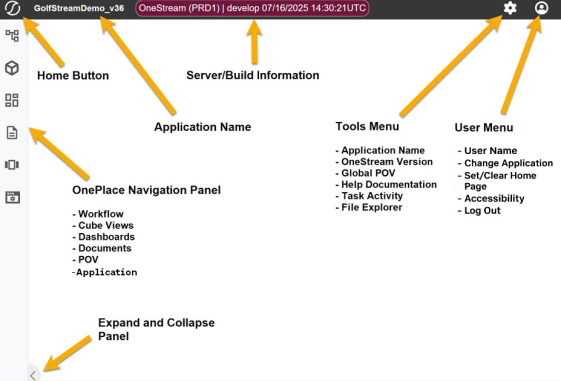
OnePlace Panel
Hide OnePlace Panel
The OnePlacePane security role can be used to hide the Navigation panel. This configuration has been added under Security Roles to enable or disable end user access to the OnePlace navigation panel. Note that the Modern Browser Experience does not provide a user interface to facilitate configuring and applying security roles at this time.

Navigate OnePlace Panel
Users can click a tile on the OnePlace toolbar to expand the flyout panel and access related end user options and features. The drop-down menu at the top of each panel can be used to easily navigate through all of the OnePlace panels.
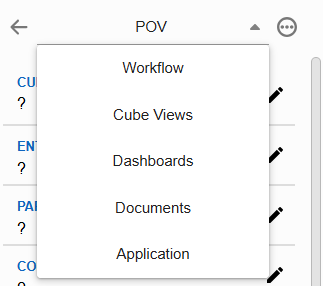
Open New Tab
Workflow, Dashboard, and Cube View pages can now be opened in a new browser tab or the current tab by right-clicking the item in OnePlace and selecting either option from a hidden context menu. Selecting the item as normal will load the page in the current tab by default.
File Explorer
File Explorer is used to manage all OneStream files and saved POVs. The File Explorer dialog can be opened by selecting the File Explorer option from the Tools menu in the application header. File Explorer functionality is fully supported in the Modern Browser Experience and primarily located on the dialog toolbar.

Grids
While the browser grids offer the same functionality as the Windows application, some differences were added to improve the user experience. In addition to the Sorting, Filtering, and Column controls found in the Windows application, the browser experience has added a column Lock feature, which allows users to lock in place any column and the columns to its left, while being able to scroll the remaining columns horizontally. Many of the grids will also have a context menu button in the left corner of the grid header with additional functionality. See Appendix C for a list of supported Number Formats.
IMPORTANT: For Grid Views, SQL Table Editor, and Dynamic Grids, "_SGRowId" is a reserved column name. Any attempts to use this column name by the user will result in the error: "[SlickGrid DataView] Each data element must implement a unique 'id' property"
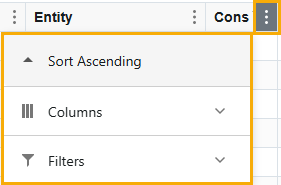
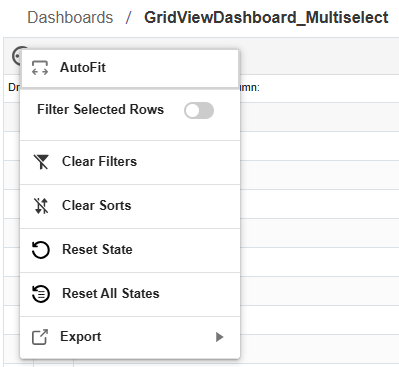
NOTE: If you specify a column width, that setting takes precedence over AutoFit.
Grid Keyboard Functionality
The browser experience includes basic keyboard shortcuts. See Appendix E for more information.
NOTE: Keyboard users cannot currently access group headers and underlying rows within a grid view.
Anchored Dialogs
Many of the dialog boxes display in a slide-out panel anchored to the right side of the page instead of the floating dialogs used in the Windows application. This paradigm offers improved visibility and provides consistency for users accessing the browser from various devices. Slide-out panels can be expanded or constricted to suit user preference by dragging the left edge horizontally across the page.

This anchored dialog box has been extended to dashboards that appear in dialog boxes. There is a larger default width compared to the Windows application, but the width can be altered with the dialog box display format configurations. Since these dialog boxes are always the full height of the screen, the height configuration for dashboards in dialog boxes are ignored.
Timeout
A warning for users who are about to be logged off due to inactivity will now be displayed in a floating dialog two minutes prior to timeout, providing users with the ability to extend their session or log off. The length of idle time allowed for a user can be configured, but the two-minute warning threshold is not currently adjustable.

Smart Links
Smart Links are designed to make it easy to share dashboards. Built with a combination of security-aware features and declarative parameters, these links can open dashboards to specific pages or mimic a series of clicks.
Smart Links are generated and stored for a set period using a Business Rule. To access a shared link, users will simply click a hyperlink or paste the URL into a browser. On access, the Smart Link will:
-
Verify if the user is logged in (if not, remain active through the login process)
-
Check if the user has access to the shared dashboard
-
Verify the dashboard can be rendered on the user’s device
-
Supply the dashboard with any declared parameters
-
Prompt the user for any undeclared parameters
-
Render the dashboard
Example Smart Link URL: https://example.onestream.com/share/ E1C52337EEE9430EAAF52D6A5846109B/DashboardProfile/Dashboard
To get started, review the code snippets in Appendix D.
Accessibility
Interfaces, features, and functionality provided in the Modern Browser Experience have been enhanced to thoroughly and effectively support the industry-standard Web Content Accessibility Guidelines (WCAG) established by the World Wide Web Consortium (W3C).

